
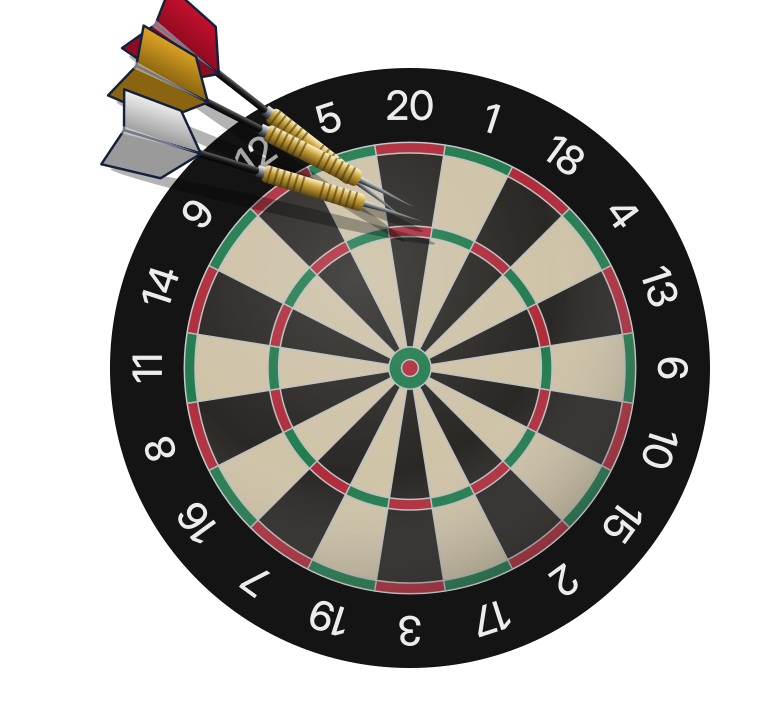

Turn your phone or tablet into a darts scoreboard with the free Huron Darts Scoring App. Use it for a practice game, or connect it to an approved league night or tournament so results return to the organizer and registered players build their stats.
Open the Scoring App · Player account · Organizer App
Install it on your phone or tablet
The app runs through your browser. You can use it immediately or add it to your home screen for a dedicated app shortcut. There is no app-store download or subscription.
iPhone or iPad
- Open HuronDarts.com/play/ in Safari.
- Tap Safari’s Share button.
- Select Add to Home Screen, then confirm Add. If your device shows Open as Web App, leave it enabled.
- Launch Huron Darts from the new home-screen icon.
Android phone or tablet
- Open the Scoring App in Chrome.
- Tap the three-dot menu and choose Install app or Add to Home screen. Follow the prompts shown on your device.
- If the app offers an install button, you can use that instead.
On a computer, open the same link in your browser. Installation wording varies by browser and device; if there is no install option, the browser version still works. For connected event scoring, keep the device online.
Start with a practice game
- Select Practice. This keeps score for the game without adding anything to player stats.
- Choose Singles or Teams, then enter the players. For teams, check the order of the names before starting.
- Select a start score: 301, 501, 701 or Custom.
- Choose the rules: DIDO means double in and double out; SIDO means single in and double out; SISO means single in and single out.
- Choose Single game, Best of 3 or Best of 5, then tap Start game.
Join a league night or tournament
- Ask the organizer for the event’s board QR code or board code. This is different from the player registration QR code.
- Scan the board QR with the tablet’s camera, or open the Scoring App, select Event / league, enter the board code and tap Join. A tablet joining with the board code does not need its own player login.
- Confirm the correct event. The organizer can assign the tablet to a board from their screen. If instructed, choose the board number on the tablet.
- Wait for the assigned match. Check the teams and players, then touch the screen to start. If automatic boards are off, choose the scheduled match manually.
- Follow the event’s starting rule. For closest to the bull, each team’s first thrower throws one dart and you tap the team that was closest. If tied, throw again.
The event can fix the start score, in/out rules and match length for every board. Those settings load with the match. A board can show a waiting message until the organizer has opened scoring and prepared its schedule.
Enter the score
Check the highlighted player or team before entering each throw. In team play, follow the displayed throwing order so the darts are recorded against the correct player.
- Each dart: choose Single, Double or Triple and tap the segment number. For example, triple 20 is Triple then 20. Use 25 for the outer bull, Bull for the centre bull, and Miss for a dart that scores nothing.
- Turn total: where the event permits it, switch to total entry and enter the points scored in the visit. Follow the prompts for darts used and checkout details. A total cannot record every individual segment hit; use dart-by-dart entry for the fullest throw history.
- Undo: correct an entry as soon as you notice it, before continuing with the next throw. Re-enter the correct score.
- Busts and finishes: the app applies the selected game rules and offers checkout suggestions when a finish is available.
Finish the match and check the result
Continue through the required legs until the match is complete. Keep the app open and connected until the result is saved. Connected results return to the organizer, update the event standings and allow the board to receive its next match. Tell the organizer if saving reports an error or the result has not appeared; check the status before entering the same result elsewhere.
Build your player stats
Practice games do not count toward stats. For event games, ask the organizer to select your registered player record rather than entering an unlinked guest name. Players can take part as guests without an account, but an unlinked guest does not build account stats automatically.
Registered players can sign in and use My Stats to review their recorded play. Measures include averages, darts thrown, wins and losses, scoring milestones and checkout information. Detailed doubles and segment records depend on the throws actually entered.
Before the first dart
- Connect to reliable Wi-Fi and keep board tablets charged.
- Confirm the event, board, players and throwing order.
- Keep the scoring app in the foreground. Screen and sleep behaviour also depends on the device’s own settings.
- Use Check for updates on the setup screen before the night begins.
- If no event is listed, ask the organizer to check approval and Open for scoring. Use Practice only when you do not need an official event result.
Ready to play? Open the free Huron Darts Scoring App. To run the night, use the Organizer App or contact Huron Darts about organizer access.