
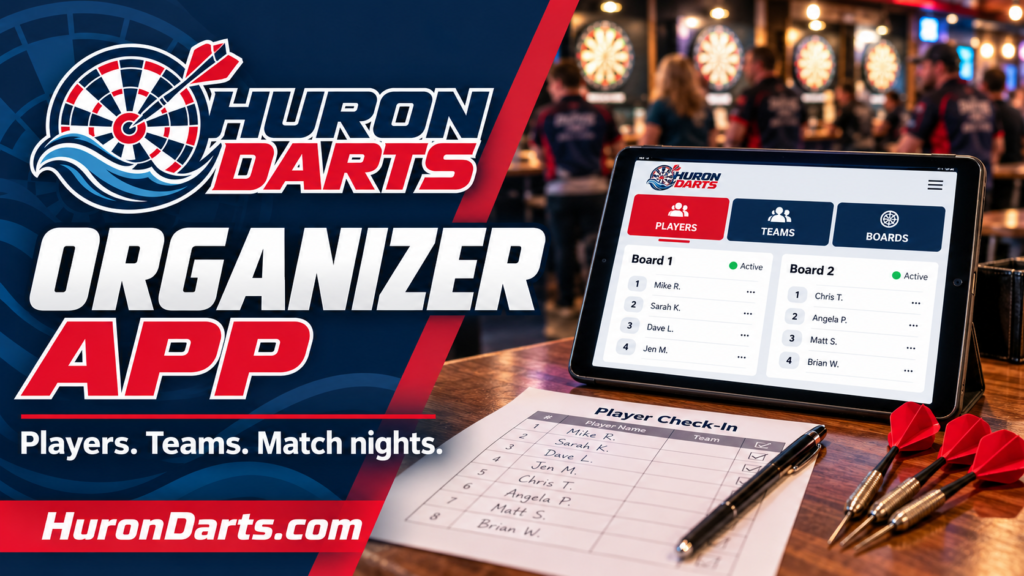
The free Huron Darts Organizer App brings the organizer’s table and the scoring boards together. Set up your league night or tournament, register players, draw or build teams, create the schedule and follow results as the tablets send them back.
Open the Organizer App · League Manager · Scoring App
Get organizer access
Organizers sign in with an authorized account. A player account alone does not automatically give permission to run events. Contact Huron Darts if your organization would like to use the system. New organizers’ events require the site owner’s approval before going public or accepting board tablets. Trusted organizers can have events approved automatically.
Add the Organizer App to your home screen
- Open HuronDarts.com/manage-events/ and sign in with your organizer account.
- iPad or iPhone: use Safari, tap Share, choose Add to Home Screen and confirm Add.
- Android tablet or phone: use Chrome, open the three-dot menu and choose Install app or Add to Home screen. Follow the device’s prompts.
- Launch the Organizer icon and sign in again if requested. You can also run it directly in a desktop browser.
The Organizer App and Scoring App use separate shortcuts. Put the Organizer App on the device at the organizer’s table and the Scoring App on board tablets. Keep devices charged and online for registration, match assignment and results.
1. Create the event
- Tap + New event.
- On 1 Event, enter a clear name and date, then select League night or Tournament.
- Set player registration: Must register in advance, Register at the event, or In advance or at the event. Set an advance deadline where needed.
- Save the event. If it is waiting for approval, you can continue preparing players and teams while the site owner reviews it.
- Use League Manager → Calendar details to add the venue and times. Approved events with dates appear on the public Schedule automatically.
Registration open and Open for scoring are separate controls. Registration controls player sign-up; Open for scoring lets approved events be used by the board tablets. Without a separate advance deadline, advance registration closes at the event start time, or at midnight at the start of its date when no time has been supplied. Enter the event times so players know when to arrive.
2. Register and check in players
Open 2 Players & teams. Build tonight’s player list from the people who are actually taking part:
- Existing members: use Pick from members or select the correct player suggestion when typing a name.
- Name and email: add a player with an email address to associate them with a player account. New accounts are emailed their sign-in details.
- Name only: add someone as a guest when no account is wanted.
- Player QR code: show the registration QR code so players can sign themselves up. Advance registration uses name and email; the on-site form accepts a name without an account.
- Shared registration tablet: for door registration, use Open On-site Registration from the Event tab. Save the registration settings before sharing. The public form opens on the event date; organizers can preview it earlier.
Check the registration list, then use Add or Add all to put the attending players into Tonight’s players. Use Refresh if a new registration has not appeared yet. Registration and inclusion in tonight’s teams are separate steps.
Choose the registered member record when a player wants personal stats. An unlinked guest can play, but does not automatically build account stats. Check similar names carefully.
3. Draw teams or create them yourself
For a random draw, select Players per team or Number of teams, enter the value and use Randomize teams. Review every team and the throwing order, then save. For a night with a maximum of four players per team, choose Players per team and enter 4; check the final team sizes when attendance is uneven.
For prearranged teams, use + Add team, name the teams and add their players manually. The list order is the throwing order. The system rotates each team’s starting player between matches.
Finish the roster before play begins. Randomizing again replaces the current teams. Adding or removing teams after creating a schedule clears that schedule so it can be created again.
4. Choose the format and game
- Open 3 Format.
- Choose Round robin, Round robin with single elimination, or Round robin with double elimination. Playoff brackets are seeded from the round robin standings.
- Set the number of Scoring boards. Choose Off only if scorers should choose matches manually.
- Choose whether each board selects its own game or every board uses the same game. For a fixed game, set the start score, in/out rules and match length.
- Choose who throws first: the first team listed, closest to the bull, or random selection by the app.
- Tap Save and create the schedule, then review it before starting.
A full round robin has one match for each pair of teams: for example, six teams means 15 round robin matches before any playoffs. Rebuilding the schedule after play has started clears its existing results from the standings. Only rebuild when you intend to restart that schedule.
5. Connect and assign board tablets
- Open 4 Tonight and locate Board tablets: scan or type the code.
- On each board tablet, scan that board QR code. Alternatively, open the Scoring App, choose Event / league, type the board code and tap Join.
- Give each joined tablet its board number in the Organizer App. Check the physical board and tablet match.
- When a scheduled match is ready, the tablet displays the teams and players. Players touch the screen to begin and follow any closest-to-the-bull prompt.
- After the match is saved, the result returns to the event and the tablet receives its next available match.
Keep the QR codes distinct: the player registration QR adds players; the board QR authorizes a scoring tablet for the event. Board tablets do not need your organizer login. Share the board code only with the people running your boards.
6. Run the night and review results
Stay on Tonight to follow board activity, matches, standings and any playoff bracket. Use the team call-out list to tell players where to go. Automatic assignment uses free boards and avoids scheduling a team on two boards at once.
Allow a short time for results to refresh. If a board cannot score a match, the organizer’s winner controls provide a manual fallback. Use Undo carefully to correct an incorrect event result. A manually entered winner does not recreate individual dart throws or the detailed stats that a scored match provides.
When play is complete, review the final placings and recorded results. Close registration when appropriate and turn off Open for scoring when the event no longer needs board access.
A quick checklist before opening the doors
- Event approved, correct date, venue, times and registration method.
- Attending players added to tonight’s list and member accounts linked correctly.
- Teams checked, format selected and schedule reviewed.
- Board count correct, tablets joined and board numbers verified.
- Wi-Fi tested, chargers available and Check for updates used before play.
Optional branding lets events carry their own logo and colours. Trusted organizers can also set up their own branded scoring app link where that option is available.
Ready to run your night? Open the Organizer App. Share our Scoring App installation and usage guide with the people at your boards, or contact Huron Darts for organizer access.